Adding Items to the AOT Add-Ins Menu
The shortcut menu in the Application Object Tree (AOT) has an Add-ins menu where you can find various development tools such as the cross-reference system and the Visual MorphXplorer.
To add your own tool to the Add-ins submenu
Create a menu item for the tool.
Locate the item you want to add to the Menu Items node.
Drag the menu item onto sysContextMenu in the Menus node.
Enabling and Disabling Menu Items According to Context
All items in the sysContextMenu menu are automatically added to the Add-ins submenu. If you want to disable items according to the current context, you need to add to the verifyItem method for the SysContextMenu class.
verifyItem( identifiername MenuItemName , MenuItemType MenuItemType ) is automatically called for each item you add to the sysContextMenu menu. It takes the name of the menu item and the menu item type as parameters, and must return 0 (zero) if the item isn't available.
Example
The following extract from verifyItem shows the testing performed when the parameter is the menu item MorphXplorer.
case menuItemDisplayStr(MorphXplorer):
if (this.selectionCount() != 1
firstNode.AOTIsOld() //Does not work for old nodes
)
{
return 0;
}
if (!docNode &&
(_firstType==UtilElementType::Class
_firstType==UtilElementType::Table))
{
return 1;
}
return 0;
Tip
There are other classes called SysContextMenu*, for example, SysContextMenuCompare. These classes are used when there are several levels in the add-ins hierarchy. For example, when you activate Compare on two objects, the Add-ins submenu is also available in the Compare dialog. The first() and next() methods on sysContextMenuCompare define the proper context.

Showing posts with label AXAPTA. Show all posts
Showing posts with label AXAPTA. Show all posts
Sunday, May 4, 2008

Saturday, May 3, 2008
Tabbed interface for Axapta 3.0
Features
- window management:
- view opened windows as tabs
- change windows position
- close windows
buttons:
- open form design for currently opened form
- open table browser for the active form or the table selected in the AOT
- open current field in AOT
- open Cross references for selected field (in AOT and for active form)
- copy name/path/AxPath of selected AOT items
- go to the application object of the current AOT item (for example to table form field)
- Add-Ins menu for AOT Item
- compare selected AOT item(s)
- import XPO
- search selected AOT item for something
- refresh AOD
- AxSearch integration
Go to : Axaptapedia Article
- window management:
- view opened windows as tabs
- change windows position
- close windows
buttons:
- open form design for currently opened form
- open table browser for the active form or the table selected in the AOT
- open current field in AOT
- open Cross references for selected field (in AOT and for active form)
- copy name/path/AxPath of selected AOT items
- go to the application object of the current AOT item (for example to table form field)
- Add-Ins menu for AOT Item
- compare selected AOT item(s)
- import XPO
- search selected AOT item for something
- refresh AOD
- AxSearch integration
Go to : Axaptapedia Article
Tuesday, April 8, 2008
Axapta Version Control Management System
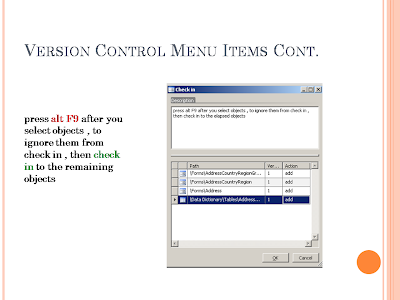
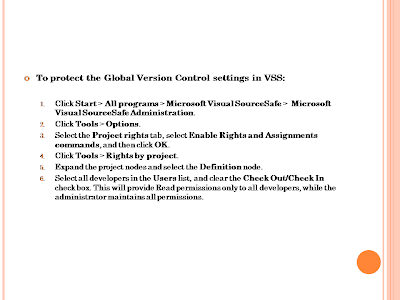
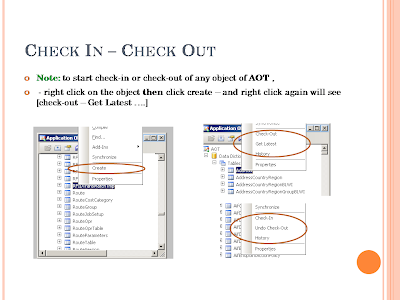
Hi Axapat friends , according to controlling source code of applications to be easily reused and maintained during the implementation phase , so i were to use the version control managment system with microsoft dynamics axapta . This article describes how to set up the Version Control Management System (VCMS) for Microsoft Dynamics AX 4.0 using Visual Studio 2005 SourceSafe (VSS) as the version control system.








References :
- Version Control System Setup [White Paper]
- Inside Microsoft Dynamics™ AX 4.0 Book
- http://msdn2.microsoft.com/
- http://channel9.msdn.com/ShowPost.aspx?PostID=367463
it’s a pleasure to help you up on your comments , Thanks


Subscribe to:
Posts (Atom)

 Posts
Posts


